
1
Video hook setups
Build top-comment screenshots that can introduce a reaction, response, tutorial, or part-two idea.
Build YouTube comment sections with channel names, @handles, pinned comments, creator hearts, likes, and reply threads for videos or mockups.
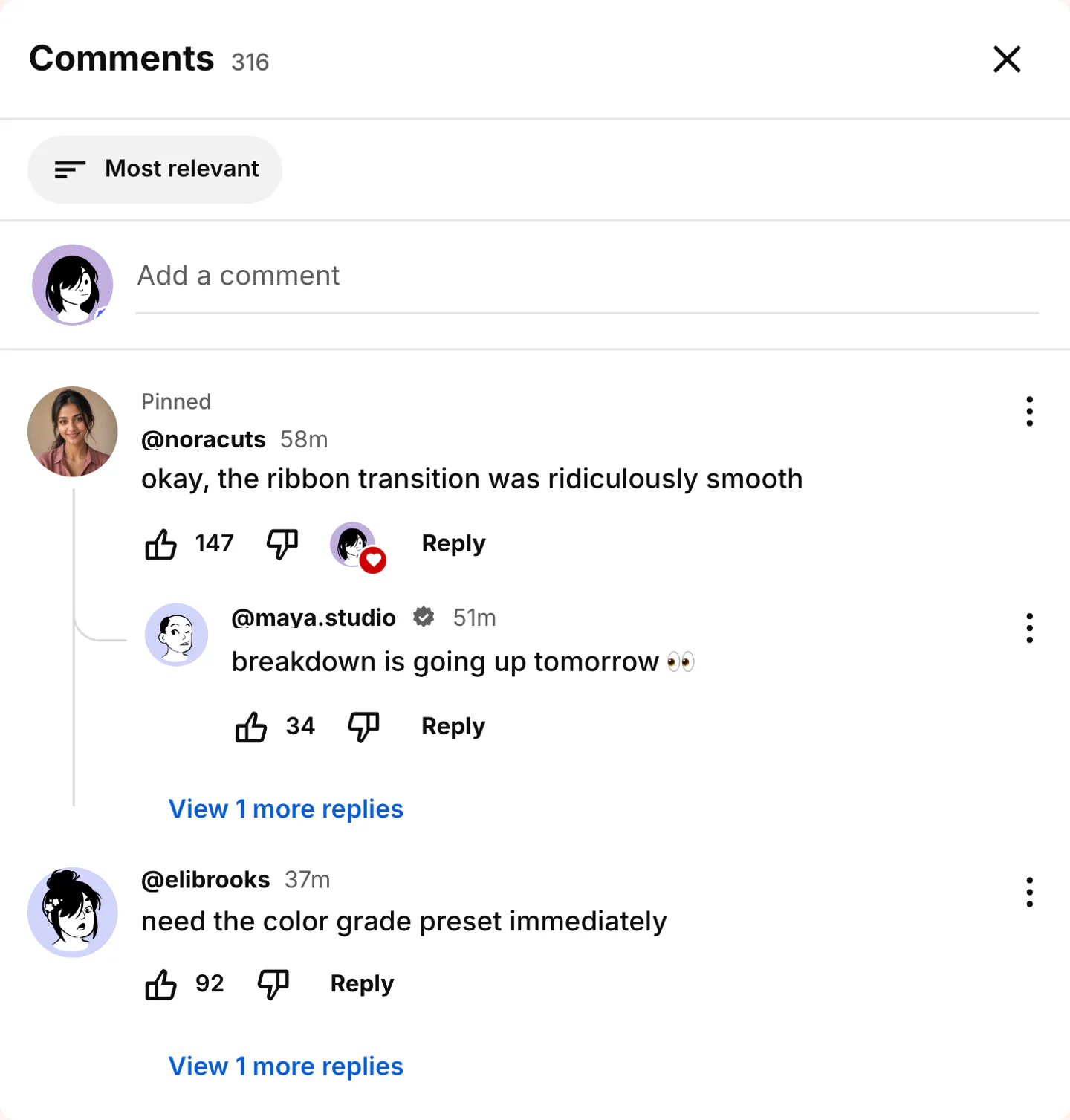
Real YouTube comments export
Three video-page threads: a pinned heart, a dark-mode pin, and a timestamp hunt. Built for a video page, not a TikTok sticker.

Pin the comment that belongs to the video. Heart only that line. Keep the rest of the thread shorter and more mixed.
Use this example
Same pin and heart, darker chrome. Use it when the YouTube insert needs to match a night-mode player.
Use this example
Viewers name the second. The creator hearts the useful stamp, not every reply.
Use this examplePick the right format
Use YouTube comments when the audience reaction matters. Replies, pinned notes, likes, and nested context show how people respond to the post.
Build top-comment screenshots that can introduce a reaction, response, tutorial, or part-two idea.
Stage viewer feedback, questions, and creator-liked comments around a new upload or channel moment.
Use YouTube-native comments as context in short-form edits, thumbnails, and content pitches.
Workflow
Step 1
Open the YouTube editor using the button above. Start with the sample scene, then replace its details with your own.
Step 2
Edit commenter names, replies, likes, timestamps, thread depth, pinned states, and appearance options.
Step 3
Download a comments screenshot or short reveal clip when the thread reaction is the hook.
Features
Set the interface cues that make a YouTube comment thread recognizable, then export it for close-up edits.
Open the YouTube comments editor with the top comment, replies, timestamps, and reaction areas already in place.
Shape top comments, replies, pinned labels, creator cues, timestamps, and nested discussion flow.
Set display names, handles, avatars, verification, and tone so every reply fits the scene.
These are the details viewers notice first when a YouTube screen appears on camera.
Also included
YouTube comment threads feel believable when the top comment has a clear reason to be there. Pinned comments, creator hearts, and reply counts should support the scene instead of making every row look equally important.
Common mistakes
Most weak mockups fail on context, not polish. Fix these before you export.
Comment threads work best when reactions feel quick, specific, and slightly messy.
Too many reply levels slow the scan. Keep the strongest reaction visible first.
Use YouTube labels, likes, pinned cues, and timestamps only when they clarify the thread.
FAQ
Quick answers about workflow, realism, and export decisions.
Stay on YouTube for video-page comments. Switch to TikTok comments or a reply sticker when the hook belongs on a short.
Related comments
Switch to a TikTok comment sheet when the hook is a short, fast reply thread instead of a YouTube page.
Create TikTok commentsReply sticker
Create a single reply-to-comment bubble when one viewer comment needs to sit on top of a video.
Create a replyRelated comments
Use Instagram comments when the reaction belongs under a feed post instead of a YouTube video.
Create IG commentsPage
Create realistic chat screenshots with familiar app layouts. Build the conversation, check it at phone size, then export a clean PNG from your browser.
Open pagePage
Create realistic voice message bubbles for WhatsApp, iMessage, and Telegram chats. Build audio note mockups with waveforms, play buttons, and duration timestamps.
Open pageRelated generator
Create fake Facebook comment threads with replies, reactions, and timestamps.
Open generatorRelated generator
Create fake X reply chains with nested comments, username context, and believable engagement pacing.
Open generatorOpen the comments editor, edit the replies, and export the finished thread.