





Follows
Follow back vs Following
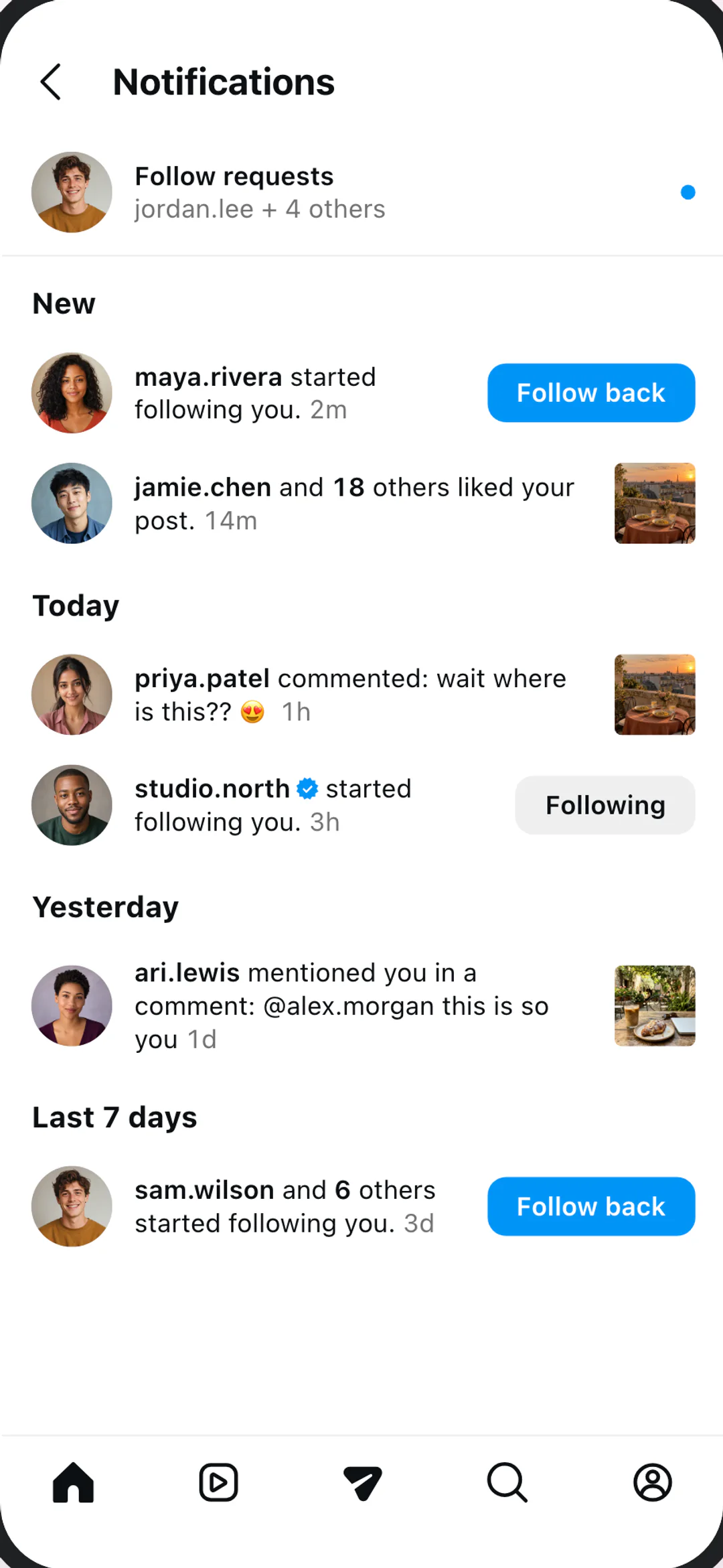
A blue Follow back means they found you first. A grey Following means you already knew each other. Pick per row.
The screen everyone checks first. Stage the follow, the like pile-on or the comment that kicks off your story, with the Follow back button and post thumbnails right where Instagram puts them.
Three scenes, one screen
Each phone below is the live editor view, staged three ways. Open any of them and change the names.
One row under New and a blue Follow back. The caption can stay quiet.
Growing “and N others” counts on one thumbnail read like a week of momentum.
Follow requests on top, a mutual follow below. Perfect for a “who is this” skit.
Built from the real screen
Instagram's Notifications screen has a handful of tells. These are the ones the editor gets right for you.
A blue Follow back means they found you first. A grey Following means you already knew each other. Pick per row.
Set Others on a follow or like and the sentence groups itself, with the count formatted for the language.
Likes, comments and mentions carry a square crop of your post. Upload the real one so the row explains itself.
Rows group under Instagram's own headings in Instagram's order, and empty sections vanish.
Every row Instagram shows
Each row has a type, a username, a photo, a time and a section. The screen handles the wording, the grouping and the buttons, so it reads like the app before anyone squints.
What people stage with it
Open a skit on the notification itself: one New row, an unexpected username, and a blue Follow back button that says everything before the caption does.
Stack likes with growing "and N others" counts down Today and Yesterday so a single screenshot reads like a week of momentum.
Mock up the comments and mentions a launch should trigger, with real thumbnails of the campaign posts, for a brief or a deck.
Workflow
Step 1
Start with one New follower or like. Type the username, upload their photo and set the button or thumbnail.
Step 2
Add a comment under Today and a follow from last week so the account looks lived in, not staged.
Step 3
Check light or dark at phone size, then download a PNG. No account needed.
Instagram's Notifications screen is read top to bottom like a timeline, so build it in that order. Decide what sits under New: that is what the viewer sees first and what your story is about. One follow from an unexpected account lands harder than five rows competing for attention. Give that row a real-looking username (lowercase, a dot or underscore, no spaces) and a profile photo that matches it.
Older sections set the context. A Today row with a comment, a Yesterday mention and a Last 7 days follow tell the viewer this account has a life beyond the one moment you care about. Likes and comments need a post thumbnail on the right: upload the actual image the scene is about so the square crop reads at a glance, and keep the "and N others" counts proportional to an account of that size.
Use Follow back for someone you do not follow yet and Following once you do; mixing them is the quickest way to imply a relationship without a word of caption. The Follow requests row at the top only belongs on a private account, so turn it off for public creators. Check light and dark mode at phone size, then export a PNG.
Common mistakes
Most weak mockups fail on context, not polish. Fix these before you export.
Notifications show handles like maya.rivera, not “Maya Rivera”. Lowercase, dots and underscores read as real.
“and 12,000 others” on a personal account is a giveaway. Scale the counts to the account in your story.
The Follow requests row only exists on private accounts. Turn it off when the account is public.
FAQ
Follows, grouping, sections and what this is not.
Switch formats without rebuilding your fictional character or campaign concept.
Related generator
Make an Instagram profile mockup with an editable username, bio, avatar, follower counts, Story highlights, and photo grid. Export a clean profile screenshot.
Open generatorRelated generator
Create fake Instagram comments, comment sections, threaded replies, pinned comments, and timestamps. Export believable Instagram screenshots for content and mockups.
Open generatorRelated generator
Create fake Instagram DMs with verified badges, seen status, reactions, story replies, and group threads. Clean PNG export needs no account; video export requires Pro.
Open generatorRelated generator
Make a fake Threads notifications screenshot: follows, likes, replies, mentions, reposts and quotes, each with its coloured badge. Free PNG, no signup.
Open generatorOpen the sample screen, swap in your username, and export in a couple of minutes.