How to Make a Fake TikTok Comment Section Screenshot
Build a fictional TikTok comment section with usernames, nested replies and creator badges. Follow two editable examples and download a free PNG.
To make a fake TikTok comment section screenshot, open a comment-thread template, edit the usernames and replies, set the visible likes and creator cues, and download the finished PNG. The result is a visual mockup for a skit, storyboard or creative concept; it does not post comments on TikTok.
Start with the TikTok comments generator. PNG screenshots are free and watermark-free without an account. Video and animation exports require Pro.
Choose a comment section or a reply bubble
Use a comment section when several voices, a nested answer or the surrounding discussion matters. Use a single reply bubble when one viewer's question needs to sit over a video. A reply bubble cannot show the same conversation structure as a full comment drawer.
For the smaller format, follow the TikTok comment reply mockup guide. The examples below use full comment sections.
Example 1: a comment that prompts a reply video
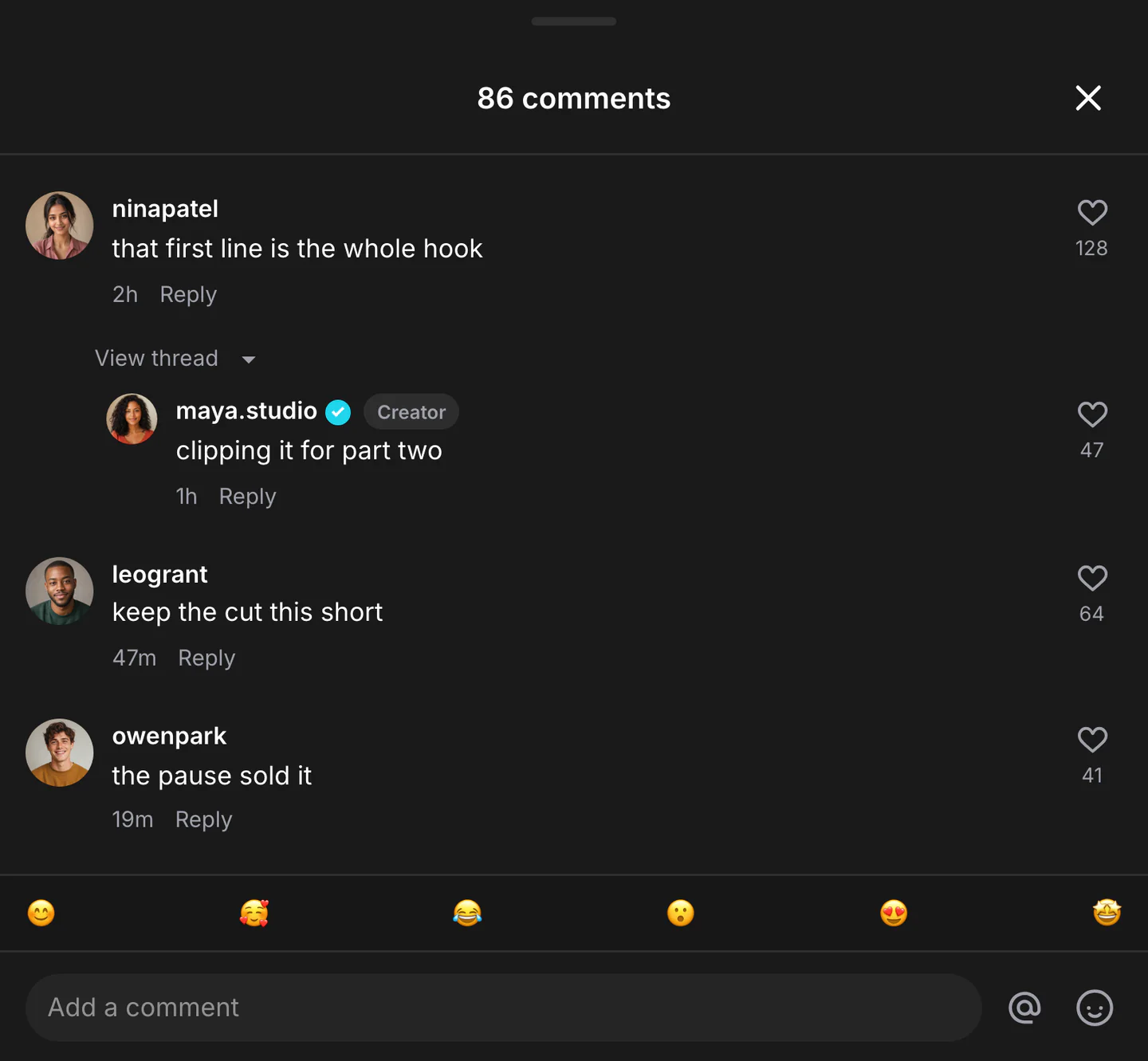
This starter keeps the setup in the parent comment and the decision in its reply:
| Position | Username | Comment | Likes | Time |
|---|---|---|---|---|
| Parent | ninapatel | that first line is the whole hook | 128 | 2h |
| Reply to ninapatel | maya.studio | clipping it for part two | 47 | 1h |
| Separate comment | leogrant | keep the cut this short | 64 | 47m |
| Separate comment | owenpark | the pause sold it | 41 | 19m |
Only maya.studio gets the creator role in this scene. The other commenters can have their own avatars and like counts without looking like the video owner.
To adapt the thread, change the parent and its answer together. For a fictional cooking skit, try “you skipped the part where the dough became a brick” followed by the creator's “that is the next tutorial.” Keep the reply nested under that parent so the joke remains connected.
Build and edit the thread
- Load an example. Use one of the editor links in this guide, or choose TikTok in the comments editor.
- Change the identities. Edit each username and upload an avatar if the scene needs one. Use fictional names or identities approved for the project.
- Replace the parent comments. Give each parent a separate point. Three short comments are easier to scan than three versions of the same reaction.
- Edit the replies beneath the right parent. A response added as a new top-level comment loses its visual connection to the question. Check the indentation in the preview.
- Set the details. Adjust likes and time labels for the scene. Apply the creator role only to the account that owns the fictional video. A verification badge and a creator role communicate different things; neither is needed on every account.
- Check the complete composition. Make sure the first comment and the last useful reply fit inside the frame. Shorten the text before shrinking it to an uncomfortable reading size.
- Export the screenshot. Open Export, choose Download PNG screenshot, and open the downloaded file. Confirm that the creator label, avatars and final reply are visible.
Example 2: two replies under the same comment
Open the part-two conversation.
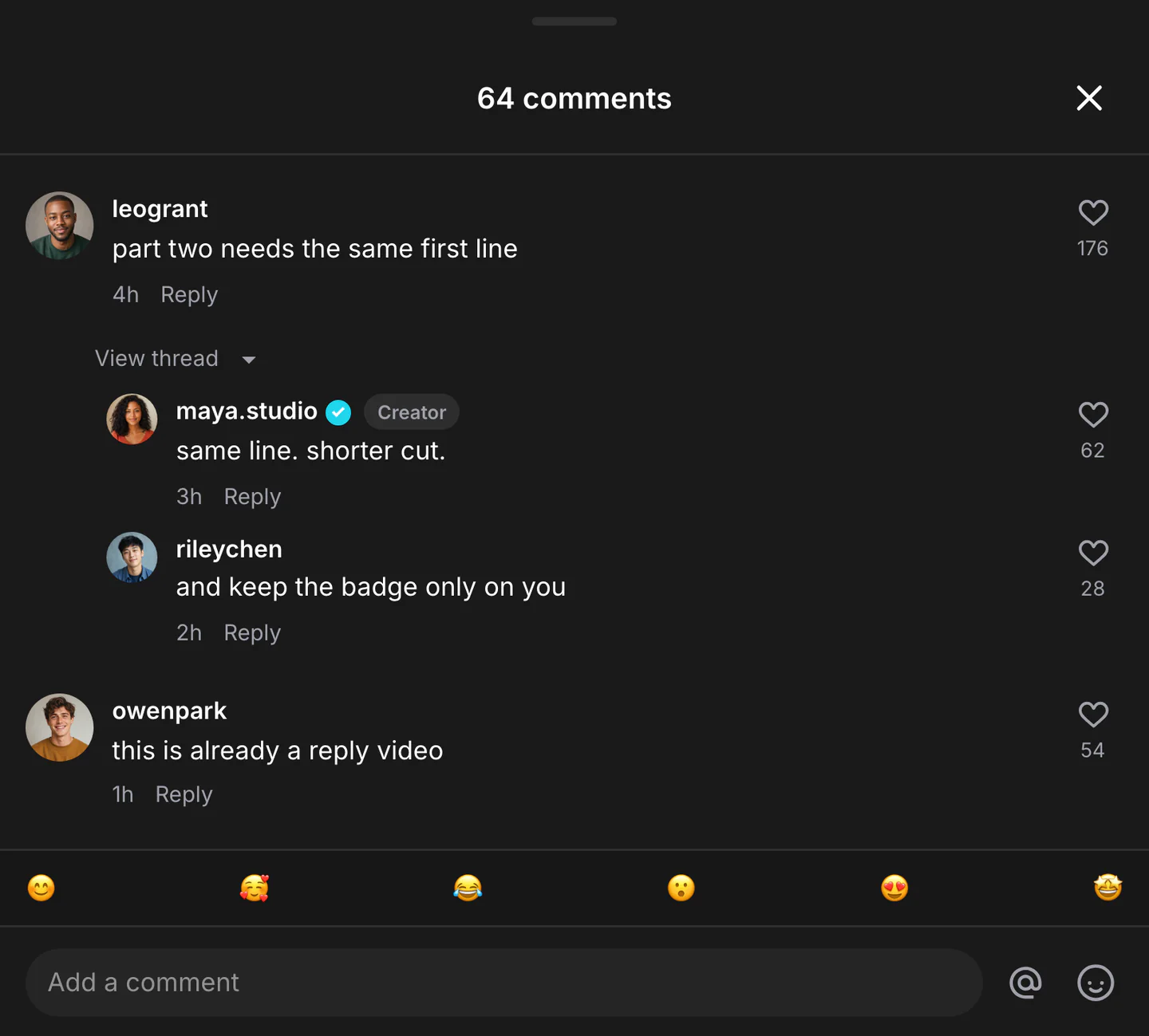
| Position | Username | Comment | Likes | Time |
|---|---|---|---|---|
| Parent | leogrant | part two needs the same first line | 176 | 4h |
| First reply | maya.studio | same line. shorter cut. | 62 | 3h |
| Second reply | rileychen | and keep the badge only on you | 28 | 2h |
| Separate comment | owenpark | this is already a reply video | 54 | 1h |
This example is useful when the creator answers and another viewer continues the same thought. Keep both answers under leogrant's comment. Moving rileychen's line to the top level would make it look like a new conversation.
For a fresh script, replace the parent with “part two is just you finding the missing screw,” the creator's reply with “twenty minutes of cinema,” and the second reply with “release the director's cut.” The exchange works because each line adds something.
Fix a crowded or confusing screenshot
If a reply seems disconnected, check its parent before changing the text. If the creator cue appears on the wrong person, correct that comment's role. If several long usernames dominate the frame, simplify the fictional identities rather than cutting off the comment itself.
The displayed likes are part of the mockup. They are not real engagement, and the editor does not buy, generate or send TikTok likes. Use counts that support the scene instead of making every comment equally popular.
For a video insert, test the PNG in your final edit. Captions or player controls can cover a reply that looked clear in the editor. Keep the key exchange readable at the size viewers will actually see.
Can I make the comments appear one at a time?
Animation is a separate export workflow and requires Pro. Plan the static thread first so its wording and hierarchy work before adding motion. The text-message video guide explains reading time and final-frame checks for conversation scenes.
Create your comment screenshot
Open the TikTok comments generator, choose the reply-video or nested-thread example, and replace the setup and answer as a pair. When sharing a fictional thread, make the skit or mockup context clear in its surrounding caption.